
HOW TO ADD A CUSTOM DOMAIN TO BLOGGER ( SEE TUTORIAL HERE)
After all these hope you are aware that your blog is still under .blogspot.com,(pizzyhome.blogspot.com),
The next step is changing it to a custom domain (pizzyfans.com), this step is essential, anything can happen to your blog, but your domain nothing can, that’s the major problem, Linda ikeji is facing.
Adding a custom domain, the first step is to purchase a domain ( I would recommend godaddy.com) for you, Note that .com/.net domain is not free, it cost #2,500.
How to buy: visit www.godaddy.com, register an account, search for the domain you want, if it is available, click the box and proceed to cart,
READ ALSO: HOW TO ADD PAGES IN YOUR BLOG HOMEPAGE
Note. That you will need a Master/Visa card to pay online,
Note: to those that don’t have, I can help you out, but you will be paying a token sum of #2,500 into my bank account, After which you call me and I will help you fix it to
Those of you that have fixed the payment method, proceed to cart, purchase only domain, don’t buy anything else, only the domain, you are to purchase it for a year, that why it is worth #2,500
After buying the domain, the next step is now adding it to your blogger account.
This process is a little bit difficult for newbie bloggers, but if you follow my instructions, bit by bit, you will understand, but of you have problems fixing it, call me on 08141160376 and I will help you fix it on
your blog.
Getting started,
step 1- sign in to your blogger account.
step 2- click on basic under settings
See pix below


Note: blogs are not to be placed on bare domains (like yourdomain.tld), so you need to input a subdomain, for example, www.yourdomain.com or blog.yourdomain.com
Once the page refreshes, you will see two CNAME records which should be created in your domain’s Zone File 
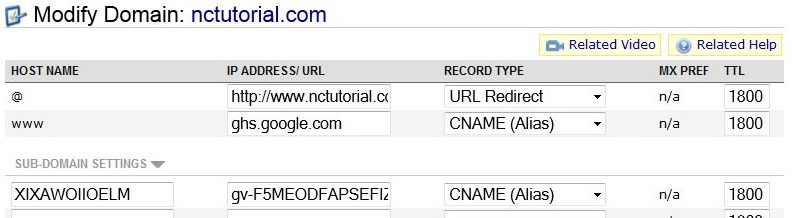
You may see an example of settings below:
The next step is changing it to a custom domain (pizzyfans.com), this step is essential, anything can happen to your blog, but your domain nothing can, that’s the major problem, Linda ikeji is facing.
Adding a custom domain, the first step is to purchase a domain ( I would recommend godaddy.com) for you, Note that .com/.net domain is not free, it cost #2,500.
How to buy: visit www.godaddy.com, register an account, search for the domain you want, if it is available, click the box and proceed to cart,
READ ALSO: HOW TO ADD PAGES IN YOUR BLOG HOMEPAGE
Note. That you will need a Master/Visa card to pay online,
Note: to those that don’t have, I can help you out, but you will be paying a token sum of #2,500 into my bank account, After which you call me and I will help you fix it to
Those of you that have fixed the payment method, proceed to cart, purchase only domain, don’t buy anything else, only the domain, you are to purchase it for a year, that why it is worth #2,500
After buying the domain, the next step is now adding it to your blogger account.
This process is a little bit difficult for newbie bloggers, but if you follow my instructions, bit by bit, you will understand, but of you have problems fixing it, call me on 08141160376 and I will help you fix it on
your blog.
Getting started,
step 1- sign in to your blogger account.
step 2- click on basic under settings
See pix below

step 3- oce this is done, you will see a field to put your domain name in. Input the domain name and click Save button
See pix below

Note: blogs are not to be placed on bare domains (like yourdomain.tld), so you need to input a subdomain, for example, www.yourdomain.com or blog.yourdomain.com

- Now you may create necessary records for your domain in your Godaddy account
- Click on the domain itself (please make sure to click on the domain, not just check box next to it);
- Click All Host Records in the left-hand menu. (Note: If you do not have All Host Records option for your domain, this means your domain is pointed to third party nameservers and you need to contact your hosting provider to create these settings).
- Here you create two records for your domain. For your @ field you put www.godaddy.com
(make sure you put your domain name and do not forget about the http://www. part) and choose URL Redirect as a record type from the drop-down menu.
- In the www field you put ghs.google.com and choose CNAME as a record type from the drop-down menu.
- Enter the value listed under Name, Label, or Host field in "Host Name" field, verification string (xxxxxxxxxxxxx.domainverify.googlehosted.com.) listed under Destination, Target, or Points To field in "IP Address/URL" field and select CNAME from the "Record type" drop-down menu under "Subdomains Settings"
- Then please click Save Changes button at the bottom of the page.
You may see an example of settings below:


No comments